Log in
 Help
Help Contact
 English
 Français
 Español

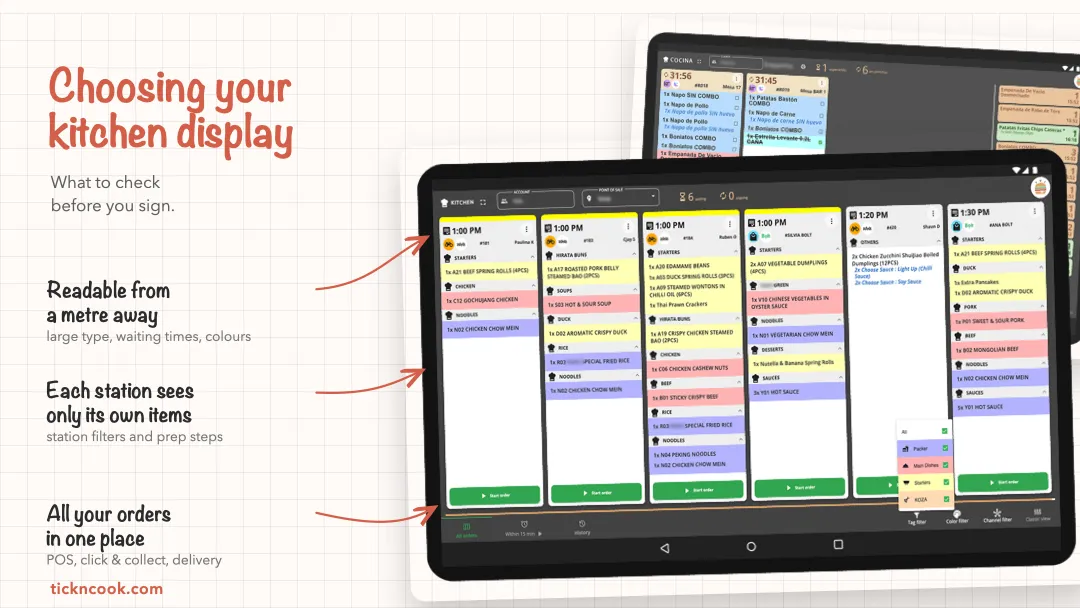
Choosing a kitchen display when you’ve never used one isn’t easy. Your job is running a restaurant, not IT. And suddenly everyone is talking about APIs, KDS, integrations and order flows.
It’s normal not to know where to start. Vendor websites don’t help much: they all promise the same thing, simple, intuitive, connected. It’s hard to tell two solutions apart when you’ve never seen either of them in action on a Friday night.
Good news: you don’t need to be technical to choose well. You need to know what to ask. That’s exactly what you’ll find here: the questions to ask, in order, and what a good answer should include.
We’ve spoken with hundreds of restaurant owners on the phone, all looking for digital tools. They’re the reason we could write this guide: simple, practical and genuinely useful for finding the right production tool for your restaurant.
📄 Our free checklist. “My kitchen display requirements checklist”: 10 sections of practical questions to pin down your needs before comparing solutions. Just leave your email and we’ll send it to you.
Start by writing down your requirements
Your requirements don’t have to be twenty pages of technical jargon… One page is enough. At least you’ll compare solutions against your own needs, not just their sales pitch and your gut feeling.
Five questions to settle before the first call:
- Where do your orders come from? POS, kiosks, click & collect website, Uber Eats, Deliveroo, phone orders… List every order channel, and think ahead too! Maybe you don’t have kiosks today, but you will in two years.
- How is your kitchen organized? How many prep stations do you have? Is your kitchen large or small? A kitchen with a single cook doesn’t have the same needs as one with a grill, a fryer, a cold station and a plating or bagging station. Use this question to sketch a simple process showing the steps an order goes through, from the moment it comes in to the moment the customer picks it up. Above all, write down who does what, and what information each station needs to work as smoothly as possible.
- What type of restaurant do you run? What challenges does it bring in the kitchen? Fast food in a big city where everything has to move fast, table service with courses, delivery, takeaway… or a bit of everything. Every service and every type of restaurant has its own challenge!
- What does your worst service look like? That’s the one to picture. How many orders at the same time, for how many people on the line? Where are the time-consuming, low-value tasks that waste precious minutes? Don’t hesitate to ask your kitchen team: sometimes a single hard-to-read ticket is enough to slow down a whole service.
- Who will use the screen? A stable team, or lots of temps and seasonal staff? The more your team turns over, the faster the tool needs to be understood, within minutes. Some of our customers also have kitchen staff who don’t speak the local language. That’s worth taking into account.
Add your budget and the date you want everything up and running. That’s your requirements list. Use it to challenge vendors and be precise about what you need. They’ll answer point by point.
📄 We’ve prepared the template for you. Our “My kitchen display requirements checklist” covers these questions and goes further: your order channels, your stations, how an order flows through your restaurant, your worst service, your team, your hardware, your budget, the questions to ask vendors and a comparison grid. 30 minutes, away from service, with your kitchen team. Leave us your email and we’ll send it right away. Nothing else required.
A KDS built into your POS, or a specialized solution?
This is the question we get asked most often. Many POS vendors now offer their own kitchen display, as an add-on or in an “all-in-one” bundle. The pitch is appealing: one supplier, one contract, one number to call.
That choice makes sense in some cases. If your kitchen is simple, with a single station, few order channels and a short menu, your POS’s KDS may be enough.
As soon as the kitchen gets more complex, we believe it’s better to choose each tool for what it does best. And we own it: it’s a strong opinion. Here’s why.
- It’s not the same job. A POS is built to take payments and handle VAT, payment methods and accounting. A kitchen display is built to organize production. At a POS vendor, the KDS is often one module among many, evolving at the pace of the POS’s priorities.
- You keep your freedom. The day you want to switch POS, you don’t break the way your kitchen works. And the reverse is true too.
- All your orders in one place. A POS’s KDS shows… POS orders first. Delivery platforms or an online ordering website aren’t always supported, or require extra modules.
- Hardware is often imposed in all-in-one bundles, with proprietary screens that cost more and take longer to replace when they break down.
Let’s be honest: this approach has its downsides. Two subscriptions, two contacts, and a connection between the two tools to check.
But the all-in-one bundle has a far more annoying flaw. You only find out what the kitchen part is worth once it’s installed. And by then, you’re stuck. The hardware is imposed. The KDS is part of a global contract. If a feature is missing, too bad.
An example. A few days ago, a restaurant owner reached out to us on our WhatsApp support to ask whether we could handle ticket printing. The salesperson for his POS system had assured him the POS’s KDS could do it… and of course, it couldn’t. Too late: he’s locked in. We do have this feature at TicknCook, but there’s nothing we can do for him now.
Hence the one real precaution: try before you sign. During a real service, with your orders and your team. A thirty-minute demo with a salesperson tells you nothing.
How orders reach the screen in the kitchen
A kitchen display is only useful if it receives orders on its own, the moment they’re placed. So before anything else, check how orders will get there.
The ideal case: a direct integration with your POS. Orders, modifications (“no onions”, an extra) and cancellations come through automatically. Ask how long the integration has existed and how many restaurants use it. An integration that’s “in development” still needs to be tested.
The reality of the market: not every POS can be connected. Some vendors don’t give access to their data, often because they sell their own KDS. You need to know this before falling in love with a solution.
Delivery platforms: a direct connection to Uber Eats, Deliveroo or others saves you from having one tablet per platform on the counter. Aggregators like HubRise or Deliverect do this job too. Be careful: they only bring in delivery orders. Not your POS orders. For those, you need a direct integration.
What if your POS can’t be connected? Or if you don’t want orders to be taken from your POS system? There’s still a fallback: some KDS offer their own order-taking tool, connected directly to the screens. That’s the case with TicknOrder, free, at TicknCook. You then have to enter each order twice (in the POS for payment, then in the tool for the kitchen). It’s not ideal. But for many kitchens, it’s already far better than paper tickets that get lost.
Putting the screen to the test of a real service
During a demo, everything looks easy to read. The real test is a screen read from a meter away, with your hands in the flour and fifteen orders on the go. Look especially at:
- readability at a distance: font size, contrast, clearly visible modifications;
- the waiting time shown on each order, with a color change when it’s running late;
- item grouping: seeing “12 smash burgers” at once rather than twelve lines scattered across eight orders is a game changer at high volumes;
- routing by station: the grill only sees the meat, the cold station only the salads, and the pass keeps the overall view;
- fit with your service: courses for table service, separate kitchen and counter screens for fast food, a screen for customers or drivers if you do takeaway or delivery.
Hardware
Some solutions impose their own hardware, or only run on iOS. Others work in a simple web browser, on any tablet or touchscreen (Android, iPad, Windows). The second option costs less upfront and gets you back on your feet faster: a tablet that dies on a Friday night can be replaced on Saturday morning. And above all, you can have large screens in the kitchen.
A few guidelines:
- an 11 to 13-inch tablet for a workstation;
- a 19-inch screen or larger for a screen read from a distance or mounted on the wall;
- a wall mount or articulated arm, not to be overlooked: the screen should free up the worktop and stay out of reach of splashes;
- a reliable internet connection in the kitchen: over wifi, or even better, plugged in directly with an RJ45 cable.
For examples of models and prices, check out our hardware guide.
Pricing
Always compare the total cost over a year, not just the monthly price on display:
- the subscription: billed per screen or per location, with or without a commitment?
- installation or setup fees;
- paid options: some offers charge separately for reporting or for each integration;
- hardware: bought freely or imposed by the vendor;
- in an all-in-one bundle, the actual share of the KDS in the overall price, often hard to isolate.
For an independent restaurant, expect anywhere from a few dozen to around a hundred euros per month depending on the number of screens. At TicknCook, it starts at €29 excl. VAT (see pricing). Add €130 to €800 per tablet depending on the range.
Getting started and support
A kitchen display that requires a full day of training won’t last in a kitchen where the team changes often. During the trial, run a test: hand the screen to someone who has never seen it. If they figure out in a few minutes how to mark an order as ready, that’s a good sign.
As for support, ask one simple question: who answers on a Saturday at 8 pm? A problem in the middle of service can’t wait for an email handled on Monday. Choose support you can reach during your opening hours, by phone or messaging, with real people who know the restaurant business.
Change takes preparation
This is the point everyone underestimates. Going from paper to screens isn’t just changing tools: it’s changing habits built up over years. Some cooks have been working with tickets for twenty years. It’s normal if they aren’t convinced on day one.
What works, based on what we see in the restaurants we support:
- involve the team from the start: let them test the solutions, they’re the ones who’ll use them;
- appoint a go-to person in the kitchen, the one the others turn to when in doubt;
- start with one station, often the busiest, before equipping the whole kitchen;
- keep the printer plugged in for a few days to reassure everyone;
- pick a quiet time to get started, not Mother’s Day weekend;
- give it time: it often takes a few weeks before the screen becomes second nature.
The first services may be a little slower. That’s normal. What matters is the trend after a month.
📄 All these questions are in our checklist. Rather than jotting everything down on a napkin, fill in our requirements checklist: channels, stations, how an order flows, team, hardware, budget, questions for vendors and a comparison grid.
The checklist before you sign
- I’ve written down my requirements: order channels, stations, type of service, budget, deadline.
- I’ve compared a KDS built into my POS with a specialized solution, knowing the limits of each.
- I’ve tested the solution during a real service before signing.
- My orders come in automatically, or I know the fallback and what it involves.
- The screen is readable from a distance, with waiting times and routing by station.
- I can use the hardware of my choice, or I knowingly accept the hardware imposed on me.
- I know the total cost over a year.
- Support can be reached during my services.
- I’ve planned time to support my team.
FAQ
Do I need a touchscreen?
It’s highly recommended: the team marks orders as ready with a simple tap, without a keyboard or mouse. A standard touchscreen tablet is enough in most cases.
What screen size should I choose for the kitchen?
11 to 13 inches for a workstation, 19 inches or more for a screen read from more than a meter away or mounted on the wall.
Is my POS’s KDS enough?
For a simple kitchen with a single station and few order channels, often yes. As soon as you have several stations, delivery or table service with courses, compare it with a specialized solution.
My POS software isn’t compatible, what can I do?
You still have two options. Ask your POS vendor whether an integration is planned. Or use an order-taking tool connected to the screens. You enter orders twice, but the kitchen is organized.
Can I keep a printer?
Yes, many restaurants keep one for delivery labels or course tickets.
How long does it take for the team to get used to it?
The basics are understood within one service. For the screen to become second nature, with nobody asking for the printer anymore, allow a few weeks.
Want to see what a kitchen display looks like during a real service? You can try TicknCook free for 15 days, with your own orders and your own team. Try TicknCook
📄 Your requirements checklist, ready to fill in
The 10 sections of this checklist cover everything we've just seen, with space to write down your answers. Fill it in with your kitchen team, then send it to the vendors you're talking to. Free, just one field to fill in.